Want to become an expert in VBA? So this is the right place for you. This blog mainly focus on teaching how to apply Visual Basic for Microsoft Excel. So improve the functionality of your excel workbooks with the aid of this blog. Also ask any questions you have regarding MS Excel and applying VBA. We are happy to assist you.

How To Remove PERSONAL.XLSB file

Today I will show you how you can delete your PERSONAL.XLSB file which is also known as Personal Macro Workbook.


To do this, first we need to show hidden folders. Because this PERSONAL.XLSB file is located inside a hidden folder. So please follow below steps if you need to delete your PERSONAL.XLSB file.

Open the Windows Explorer.

Then click on the view menu and put tick to “Hidden items”

Go to the following file path. C:\Users\User 1\AppData\Roaming\Microsoft\Excel\XLSTART

Please note that “User 1” of above path should be replaced with the username of your computer.


Then delete the PERSONAL.XLSB. You will need to close the Excel application before delete this file if the app is in open state. This is how you can delete PERSONAL.XLSB file in Windows 10. If you are using different Windows version, steps will little different.

XLSB File

This post is about .XLSB file format. I will explain you few basic things about this file type and how to open this kind of files.

A file with .xlsb file format is call as Excel binary workbook file. So the data stored in this file in binary format. Like XLSM files these XLSB files can have macros in it. So you need to be very careful when opening this kind of file type unless you received it from trusted source.

Lot of other Excel file formats store data in XML like format. As XLSB file type store data in binary format, it is much faster to read from and write to these files. So if you have a file with mass amount of data, then it is advisable to convert it to the .XLSB format.

You can convert it like this.

Open your excel file.

Click on “File” menu.

Click “Save as”

Browse the folder you need to save your file.

Then give appropriate name to the file and select file format as .XLSB

Click “Save”

How to open .XLSB file

You can simply open these files using Microsoft Office Excel application. If you don’t have Excel application then you can use OpenOffice Calc or LibreOffice Calc too.

Concatenate using VBA

Today I'm going to explain you how to concatenate values in VBA. Excel application already have an inbuilt function to concatenate values in cells. What it does is, it just concatenate values in each cell. It is a very helpfull inbuilt function. But we often need more custom concatenations than that. So I will explain you how you can use VBA to concatenate values in cells according to your requirements.

This is an example worksheet.


Assume we need all the words in column A to E of each row to show up in column F with a comma and space between them.

Here is the VBA code which can accomplish that.


Sub ConcatenationExample()

Dim WS As Worksheet

Set WS = ActiveSheet

'find last row
Lastrow = WS.Cells.Find("*", [A1], , , xlByRows, xlPrevious).Row

Dim result As String

For i = 1 To Lastrow
    For j = 1 To 5
        If WS.Cells(i, j) <> "" Then
            If result <> "" Then
                result = result & ", " & WS.Cells(i, j)
            Else
                result = result & WS.Cells(i, j)
            End If
        End If
    Next j
    WS.Cells(i, 23) = result
    result = ""
Next i

End Sub

You will get following result after running above macro


Next I will explain you the code step by step.

Define the sheet variable.

Dim WS As Worksheet

assign active sheet to worksheet variable.

Set WS = ActiveSheet

Find the last row of the sheet

'find last row
Lastrow = WS.Cells.Find("*", [A1], , , xlByRows, xlPrevious).Row

Define a variable to hold result in each loop

Dim result As String

Loop through rows

For i = 1 To Lastrow
   
Next i

Loop through columns from A to E

For j = 1 To 5
       
Next j

Check whether cell is not empty

If WS.Cells(i, j) <> "" Then
           
End If

We don't need comma at beginning. So we check result string to identify whether we going to concatenate first value or not.

If result <> "" Then
    result = result & ", " & WS.Cells(i, j)
Else
    result = result & WS.Cells(i, j)
End If

Write result to column F of each row

WS.Cells(i, 6) = result

Clear the result variable for next loop.


result = ""

Reference Dynamic Userform Name

If you want to reference a one particular  userform you can do it in a very simple way.  What you can do is you can just use the name of the  userform.  For an example,  think you have a userform call UserForm1. If you want to show  this   userform  you can simply use following code.


Sub ShowForm()

UserForm1.Show

End Sub

But sometimes we need to reference userforms dynamically.  For an example assume you have  several userforms.  You need to show a different forms depending on different conditions.  And there is a text box where program generate the name of the userform you need to display. That means you need to show the userform which is shown in this text box. Then we can't use above simple method.  Because we need to reference userforms  dynamically. So we need a more dynamic solution like below. Here txtDisplayFormName refers to name of the textbox where program displays the name of the userform  we need to show.

Dim formName As String

formName = txtDisplayFormName.Value

Dim DForm As Object

Set DForm = UserForms.Add(formName)

DForm.Show

How to Find Out Bit Version of Excel

In this post I will explain you how to find out bit version of excel. First, open the Excel application.


Choose blank workbook. So new workbook will be created. then click on the file menu.

Then click “Account”.

Next click the “About Excel” button.


Another window will open showing the details of your office version. Bit version will shown at top.

How to Add Power Query to Excel Ribbon

In this post I will show you how to add  power query to Excel ribbon.

First, open the Excel application. Choose blank workbook.


So new workbook will be created. then click on the file menu.

Then click on the options.

Then Excel options window will pop up. Click on Add-Ins

Then select “Microsoft Power Query for Excel” and click OK.


Power Query tab will added to the Excel ribbon.

If "Microsoft Power Query for Excel" is not listed in Add-Ins list then you can download it from Microsoft website.

Search google for the Power Query.

Go to the download page. And click on the download button.

Then select the apropriate file to download according to the bit version.


Add a Command Button to an Excel Sheet


Today I am going to explain you how to insert a command button to an Excel sheet. First click on the developer tab.


Then click on the insert.

You will notice that there are two types of buttons available in VBA. One is form control buttons and other one is ActiveX control command buttons. There are few differences between these two types of buttons. Form control buttons compatible with any Microsoft Excel version. Also they are compatible with Mac OS too. But ActiveX control command buttons are not compatible with Mac OS. Also it is different how you can write codes for each of these button types. You can easily write codes for ActiveX control command buttons by double clicking on the button. But if you need to write the code for the form control button, first you need to develop the code on a separate module. Then you can right click on the form control button and assign macro.


So if you select the ActiveX control command button your mouse pointer will changed to + symbol. Then click on somewhere in the Excel sheet and drag the mouse to create a rectangle. 


Release the left mouse button. Then command button will be created like this.  


Next I will explain you how to change the name of the command button or any other property. First you need to right click on command button. Then select properties. 


You will see the properties window like this.

Now you can change properties like name, caption, background colour and font colour etc. from this window. And when you name the controls, it is a good practice to follow the conventional naming system. For an example if you want to name this command button as “Click” then you need to add cmd before the name. So the name will be “cmdClick”.

Next I will explain you how to add VBA code to ActiveX control command button. As an example let's write a code to type from 1 to 100,000 in column A of the Excel sheet. First click on the developer tab and select the Design mode.
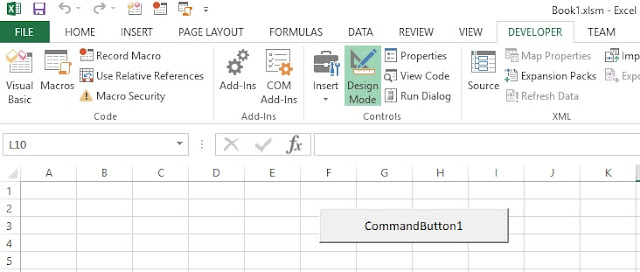


Now double click on the command button. Then VBA editor will be opened like this.
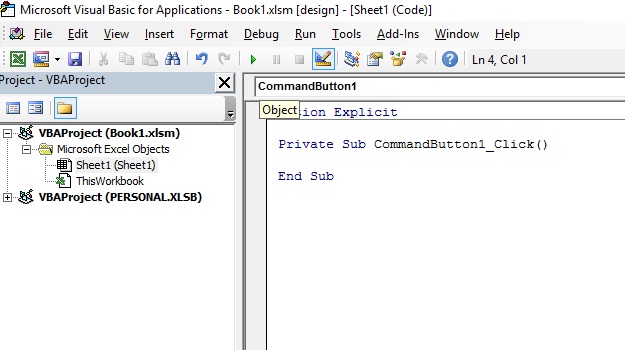


So you can add the below code to the command button.


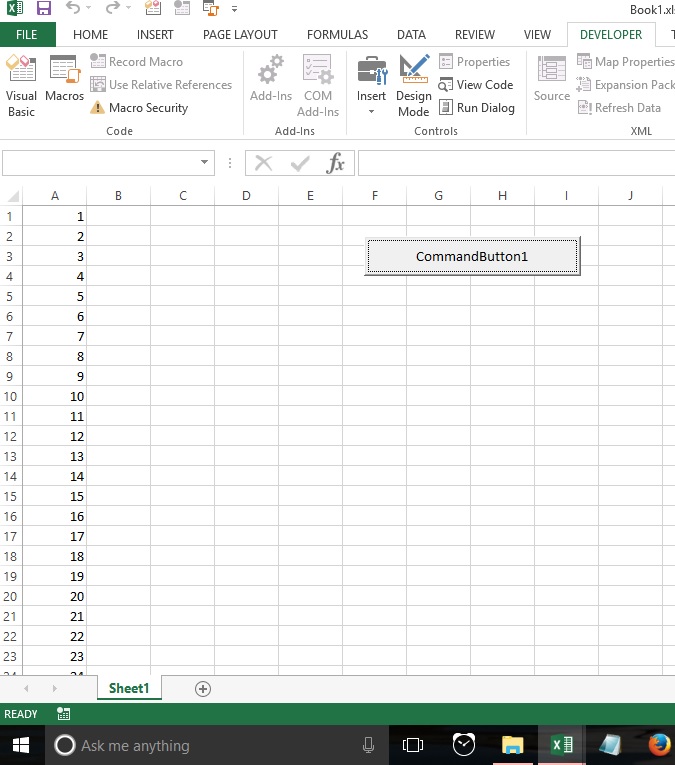
Exit the design mode by clicking on it again. Then click the command button to run the program. You will get following result.


Contact Form

Name

Email *

Message *