Want to become an expert in VBA? So this is the right place for you. This blog mainly focus on teaching how to apply Visual Basic for Microsoft Excel. So improve the functionality of your excel workbooks with the aid of this blog. Also ask any questions you have regarding MS Excel and applying VBA. We are happy to assist you.

IsNumeric Function (VBA Function)

Today’s post is about another very useful vba function called “IsNumeric” function. This function evaluates whether the argument is a number or not. So if all the characters are numeric then IsNumeric function will return True. If any character of the argument is not numeric then the function will return false. However the function will still return true if you use dot(.) as a decimal point or comma (,) as a thousand separator.

IsNumeric is a built-in VBA function. However it is not available in worksheets. You can only use it in the VBA programs. (In VBA editor)

The syntax of the function is as follows. There is one parameter for this function.

IsNumeric(chars)

Parameter is required.

IsNumeric function returns
True - If the argument can be evaluated as number
False - If the argument can not be evaluated as number.

Keep in mind that IsNumeric("4,56") will return true. But IsNumeric("4/56") or IsNumeric("4^56") will return false.

Now let’s look at some examples.

Example 1

Sub IsNumericFunctionExample1()

Dim S As String

S = "156"
Debug.Print IsNumeric(S)

End Sub

Example 2

Sub IsNumericFunctionExamples2()

Dim S As Variant

S = "45.2"
Debug.Print IsNumeric(S)

End Sub

Example 3

Sub IsNumericFunctionExample3()

Dim S As String

S = "www"
Debug.Print IsNumeric(S)

End Sub

Example 4

Sub IsNumericFunctionExample4()

Dim S As String

S = "ww33w"
Debug.Print IsNumeric(S)

End Sub

Example 5

Sub IsNumericFunctionExample5()

Dim S As String

S = "4,565"
Debug.Print IsNumeric(S)

End Sub

Example 6

Sub IsNumericFunctionExample6()

Dim S As String

S = "4/56"
Debug.Print IsNumeric(S)

End Sub

Using the IsNumeric Function to Avoid CDbl Type Mismatch Error

In the last post I explained about one reason why we get “Type mismatch (Run Time Error 13)” when we use the CDbl function. If we try to convert a value of an empty textbox to double then we get Type mismatch error. To solve that we came up with this below solution.


Sub TotalAmountCalculation()

     Dim Amount1 As Double
     Dim Amount2 As Double

     Amount1 = 0
     Amount2 = 0

     If frmInput.txtAmount1.Value <> "" Then
         Amount1 = CDbl(frmInput.txtAmount1.Value)
     End If

     If frmInput.txtAmount2.Value <> "" Then
         Amount2 = CDbl(frmInput.txtAmount2.Value)
     End If

     frmInput.txtTotalAmountPaid.Value = Amount1 + Amount2

End Sub

frmInput is the name of the form. txtAmount1 and txtAmount2 are the names of “Amount 1” and “Amount 2” textboxes. And the txtTotalAmountPaid is the name of the “Total Amount Paid” textbox. Also the “Total Amount Paid” textbox is updated whenever a change takes place in “Amount 1” or “Amount 2” textboxes. Read this post if you like to see full details about the above solution.

CDbl - Type Mismatch Error When Textbox is Empty (How to Solve)

So now we won’t get Type mismatch error when a textbox is empty. But still there is a problem. Assume that the user entered a value like this.

As you can see the user has entered a letter instead of a value. This can happen by mistake. Sometimes users might enter a $ symbol intentionally. But then CDbl can not cast that value to double. If you want to disregard the incorrect values entered by the user, then you can use a subroutine like this. Here we have used a VBA function called “IsNumeric” to check whether the user has entered a numeric value. Value will be converted to a double only if it is numeric.

Sub TotalAmountCalculation()

     Dim Amount1 As Double
     Dim Amount2 As Double

     Amount1 = 0
     Amount2 = 0

     If IsNumeric(frmInput.txtAmount1.Value) = True Then
         Amount1 = CDbl(frmInput.txtAmount1.Value)
     End If

     If IsNumeric(frmInput.txtAmount2.Value) = True Then
         Amount2 = CDbl(frmInput.txtAmount2.Value)
     End If

     frmInput.txtTotalAmountPaid.Value = Amount1 + Amount2

End Sub

Note that you can use IsNumeric(frmInput.txtAmount1.Value) instead of IsNumeric(frmInput.txtAmount1.Value) = True

So then you can rewrite the above code as follows.

Sub TotalAmountCalculation()

     Dim Amount1 As Double
     Dim Amount2 As Double

     Amount1 = 0
     Amount2 = 0

     If IsNumeric(frmInput.txtAmount1.Value) Then
         Amount1 = CDbl(frmInput.txtAmount1.Value)
     End If

     If IsNumeric(frmInput.txtAmount2.Value) Then
         Amount2 = CDbl(frmInput.txtAmount2.Value)
     End If

     frmInput.txtTotalAmountPaid.Value = Amount1 + Amount2

End Sub

Below is a sample result we will get.


Now in this case the user has entered an incorrect value to “Amount 2”. But the program has calculated value ignoring that. But as you can see this is not a good approach. Because if a user enters a non numeric value by mistake then still the program will give a result ignoring it. So the best way to handle this is by giving the warning to the user saying that he/she has entered invalid value. And then the program should not output any result. To do that we can make a change to above subroutine as follows.

Sub TotalAmountCalculation()

     Dim Amount1 As Double
     Dim Amount2 As Double

     Amount1 = 0
     Amount2 = 0

     If frmInput.txtAmount1.Value <> "" Then
         If IsNumeric(frmInput.txtAmount1.Value) = True Then
             Amount1 = CDbl(frmInput.txtAmount1.Value)
         Else
             MsgBox "You have entered incorrect value for Amount 1", , "Warning"
             frmInput.txtTotalAmountPaid.Value = ""
             Exit Sub
         End If
     End If

     If frmInput.txtAmount2.Value <> "" Then
         If IsNumeric(frmInput.txtAmount2.Value) = True Then
             Amount2 = CDbl(frmInput.txtAmount2.Value)
         Else
             MsgBox "You have entered incorrect value for Amount 2", , "Warning"
             frmInput.txtTotalAmountPaid.Value = ""
             Exit Sub
         End If
     End If

     frmInput.txtTotalAmountPaid.Value = Amount1 + Amount2

End Sub

Note that the program needs to check whether the value is numeric or not, only if the textbox is not empty. So in addition to the IsNumeric function we need to use frmInput.txtAmount1.Value <> "" as well. Also the following line has been used to clear the result if there is any invalid value in Amount 1 or Amount 2 textboxes.

frmInput.txtTotalAmountPaid.Value = ""

So now the program displays a warning message if there is any invalid input in the textboxes.

Results will be cleared when click ok.

If you like to learn more about the IsNumeric function, the read this post

IsNumeric Function (VBA Function)

CDbl - Type Mismatch Error When Textbox is Empty (How to Solve)

In the earlier post we learnt why we sometimes get “Type mismatch” error when we convert textbox values to double using the CDbl function. This error can occur due to several reasons.

Read this post if you want to know what the reasons are.

Type Mismatch Error (Run Time Error 13) When Converting to Double

Converting an empty string is one reason for this “Type mismatch” error. In this post I will explain how to avoid the error when a textbox is empty. So let’s consider the following sample subroutine.

Sub TotalAmountCalculationEx1()

     Dim Value1 As Double
     Dim Value2 As Double

     Value1 = CDbl(frmInput.txtAmount1.Value)
     Value2 = CDbl(frmInput.txtAmount2.Value)

     frmInput.txtTotalAmountPaid.Value = Value1 + Value2

End Sub

frmInput is a form. txtAmount1 and txtAmount2 are textboxes. txtTotalAmountPaid is also a textbox. When this subroutine is executed, sum of values in txtAmount1 and txtAmount2 will be displayed in the txtTotalAmountPaid textbox. But this program won’t work if any of those two textboxes is empty. Then it will give Type mismatch error (Run-time error '13'). To avoid this error which occurs when a textbox is empty we can use the following steps. First we can assign value 0 to variables Value1 and Value2. So these will be the default values of the two variables. Then we can use a If statements to check whether textboxes are empty or not. Value will be converted to a double only if the textbox is not empty.

Sub TotalAmountCalculation()

     Dim Value1 As Double
     Dim Value2 As Double

     Value1 = 0
     Value2 = 0

     If frmInput.txtAmount1.Value <> "" Then
         Value1 = CDbl(frmInput.txtAmount1.Value)
     End If

     If frmInput.txtAmount2.Value <> "" Then
         Value2 = CDbl(frmInput.txtAmount2.Value)
     End If

     frmInput.txtTotalAmountPaid.Value = Value1 + Value2

End Sub

In VBA we use <> to check the Inequality. So the following line checks whether the value of txtAmount1 is unequal to "" or not.

If frmInput.txtAmount1.Value <> "" Then

In VBA "" represents an empty string.

If frmInput.txtAmount1.Value <> "" is true then it will execute the below line

Value1 = CDbl(frmInput.txtAmount1.Value)

This is the same for txtAmount2 as well.

Type Mismatch Error (Run Time Error 13) When Converting to Double

Have you get Type Mismatch Error (Run time error 13) when trying to convert a textbox value to a double. (using CDbl function). If so I will explain the reason for that and how to overcome the error.

I will explain this using a sample project. Let’s consider this simple data entry application. Below is an image of the user interface of the program.

Using this application users can select upto two payment methods and then can enter the amounts separately. Whenever “Amount 1“ or “Amount 2“ is updated then “Total Amount Paid” should be updated automatically and instantly. So to do this we can create a subroutine in a separate module and then can use the change events of the “Amount 1” and “Amount 2” textboxes to trigger that subroutine.

Following are the codes of change events of two textboxes.

Private Sub txtAmount1_Change()

     Call TotalAmountCalculation

End Sub

Private Sub txtAmount2_Change()

     Call TotalAmountCalculation

End Sub

And we can put the below code in a separate module. This is a simple subroutine which calculates the total amount.

Sub TotalAmountCalculation()

     Dim Amount1 As Double
     Dim Amount2 As Double

     Amount1 = CDbl(frmInput.txtAmount1.Value)
     Amount2 = CDbl(frmInput.txtAmount2.Value)

     frmInput.txtTotalAmountPaid.Value = Amount1 + Amount2

End Sub

As you can see, the CDbl function is used to convert the values to double. But if we try to enter a value to one of the textboxes, we will get Type Mismatch Error. (Run Time Error 13).


Why does it happen? So the reason is this. We tried to enter a value to “Amount 1” textbox. But at that time “Amount 2” textbox is empty. So when the TotalAmountCalculation subroutine is triggered, the program tries to convert “Amount 2” textbox value also to a double.

Amount2 = CDbl(frmInput.txtAmount2.Value)

But as the “Amount 2” textbox is empty, we get an error. Because CDbl can’t convert an empty string to a double. CDbl can convert only numeric values. For an example following will give Type mismatch error.

Sub ConvertToDouble()

     Dim ConvertedValue As Double

     ConvertedValue = CDbl("122RE")
     Debug.Print ConvertedValue

End Sub

But below will print 122 in the immediate window.

Sub ConvertToDouble()

     Dim ConvertedValue As Double

     ConvertedValue = CDbl("122")
     Debug.Print ConvertedValue

End Sub

Because 122 is a numeric value, but 122RE is not.

So how do we solve the problem with the textboxes. Here are two possible solutions.

1. Convert to double only if the textbox is not empty.
2. Use Val function instead of CDbl

How to Show Immediate Window in VBA Environment

Immediate window is a very important element in the VBA Environment. You can use it to see the result of the debugging statements. Also you can directly write commands to the immediate window as well.

Following are two main benefits of immediate window.

  • Find the result of the functions.
  • Find Current values of the variables.

If your VBA environment looks like this then your immediate window is not visible.

To make it visible, you can follow these steps.

First click on the “View” menu. Then click on the “Immediate Window”.

Immediate Window will appear below the code Window.


Also you can use the following keyboard shortcut to show the immediate window.

Ctrl + G

When to use the getElementsByClassName method

In the previous post we learnt why it is easier to use the getElementById than getElementsByClassName method. Read this post if you want to learn how to use the getElementById method in web scraping.

getElementsByClassName Vs getElementById

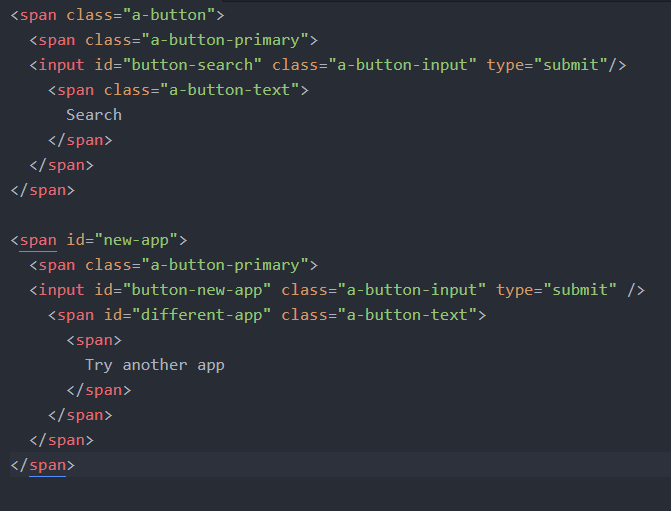
But you can’t use getElementById all the time. Because web developers don’t assign id's for all the elements. And sometimes we need to cope with these elements which don't have id’s. Here is an example.

There are two submit buttons in the above sample HTML code. This is the code of the first button.

And following is the code for the second button.

Assume that we want to click the second submit button. So how do we find that element? Can we use the easiest method explained in the last post? As you can see we can’t use that method as there is no id related to this second submit button. However this second button is assigned to a class called “a-button-input”. Because of that, we can use getElementsByClassName method to click the button.

Now the first thing we need to find is the index number of this element with the specified class. To find that we need to count the number of elements in the webpage before this submit button with the specified class. Let’s assume that there are five elements which belongs to same class before this submit button. As the index starts at 0, the index of this second submit button should be 5. Then we can click the second button as follows.

Set objIE = CreateObject("InternetExplorer.Application")

objIE.Top = 0
objIE.Left = 0
objIE.Width = 800
objIE.Height = 600

objIE.Visible = True

objIE.Navigate ("Url here")

Do
DoEvents
Loop Until objIE.readystate = 4

objIE.document.getElementsByClassName("a-button-input")(5).Click

Note that you need to change the number in the last line to suit with the index number. If the index number is x, then you can write it as follows.

objIE.document.getElementsByClassName("a-button-input")(x).Click

getElementsByClassName Vs getElementById

Programmers use various languages to develop programs to collect data from websites. Even the programmers who are using the same language use different techniques to extract the data. If you are new to web scraping, a typical question you will have is when to use which method. getElementsByClassName and getElementById are such two methods which often confuse the novices. Because lots of beginners have a doubt about why they should use getElementsByClassName or getElementById over the other in different situations.

So in this post I thought to teach you how to use these two methods appropriately. First thing we need to understand is that the websites are not developed aiming at helping web scraping. Web developers use various techniques and methods to have various functionalities, make the website pleasing to the eye, increase the speed and easy to make changes. So if we develop a web scraping program then we have to consider the inherent features of that particular website when doing the coding.

Now let’s consider the following HTML code. As you can see there are two input tags of type "submit" in this code. Assume we want to click the first submit button.

If you carefully examine the code, you can see that both buttons belong to the same class called "a-button-input". However both buttons have unique IDs as well. As the first button has a unique id, the easiest method to click that button is using the getElementById method. This is how you can do it.

Set objIE = CreateObject("InternetExplorer.Application")

objIE.Top = 0
objIE.Left = 0
objIE.Width = 800
objIE.Height = 600

objIE.Visible = True

objIE.Navigate ("Url here")

Do
DoEvents
Loop Until objIE.readystate = 4

objIE.document.getElementById ("button-search").Click

If you want to click the same button using the getElementsByClassName method, then you can do it as follows.

Set objIE = CreateObject("InternetExplorer.Application")

objIE.Top = 0
objIE.Left = 0
objIE.Width = 800
objIE.Height = 600

objIE.Visible = True

objIE.Navigate ("Url here")

Do
DoEvents
Loop Until objIE.readystate = 4

objIE.document.getElementsByClassName("a-button-input")(0).Click

Several elements can have the same class name. So in this method we have to use the index number of the element. Index starts at 0. You may not see a big difference in the above examples as there are only two input tags in the HTML code. But in real life, it is not simple like this. Some web pages have a large number of elements with the same class name. So then it is difficult to find the index number of the element we need. But if there is an id for that element, then we can use the getElementById method without thinking about the index number of the element.

Contact Form

Name

Email *

Message *