Want to become an expert in VBA? So this is the right place for you. This blog mainly focus on teaching how to apply Visual Basic for Microsoft Excel. So improve the functionality of your excel workbooks with the aid of this blog. Also ask any questions you have regarding MS Excel and applying VBA. We are happy to assist you.

Concatenate using VBA

Today I'm going to explain you how to concatenate values in VBA. Excel application already have an inbuilt function to concatenate values in cells. What it does is, it just concatenate values in each cell. It is a very helpfull inbuilt function. But we often need more custom concatenations than that. So I will explain you how you can use VBA to concatenate values in cells according to your requirements.

This is an example worksheet.


Assume we need all the words in column A to E of each row to show up in column F with a comma and space between them.

Here is the VBA code which can accomplish that.


Sub ConcatenationExample()

Dim WS As Worksheet

Set WS = ActiveSheet

'find last row
Lastrow = WS.Cells.Find("*", [A1], , , xlByRows, xlPrevious).Row

Dim result As String

For i = 1 To Lastrow
    For j = 1 To 5
        If WS.Cells(i, j) <> "" Then
            If result <> "" Then
                result = result & ", " & WS.Cells(i, j)
            Else
                result = result & WS.Cells(i, j)
            End If
        End If
    Next j
    WS.Cells(i, 23) = result
    result = ""
Next i

End Sub

You will get following result after running above macro


Next I will explain you the code step by step.

Define the sheet variable.

Dim WS As Worksheet

assign active sheet to worksheet variable.

Set WS = ActiveSheet

Find the last row of the sheet

'find last row
Lastrow = WS.Cells.Find("*", [A1], , , xlByRows, xlPrevious).Row

Define a variable to hold result in each loop

Dim result As String

Loop through rows

For i = 1 To Lastrow
   
Next i

Loop through columns from A to E

For j = 1 To 5
       
Next j

Check whether cell is not empty

If WS.Cells(i, j) <> "" Then
           
End If

We don't need comma at beginning. So we check result string to identify whether we going to concatenate first value or not.

If result <> "" Then
    result = result & ", " & WS.Cells(i, j)
Else
    result = result & WS.Cells(i, j)
End If

Write result to column F of each row

WS.Cells(i, 6) = result

Clear the result variable for next loop.


result = ""

Reference Dynamic Userform Name

If you want to reference a one particular  userform you can do it in a very simple way.  What you can do is you can just use the name of the  userform.  For an example,  think you have a userform call UserForm1. If you want to show  this   userform  you can simply use following code.


Sub ShowForm()

UserForm1.Show

End Sub

But sometimes we need to reference userforms dynamically.  For an example assume you have  several userforms.  You need to show a different forms depending on different conditions.  And there is a text box where program generate the name of the userform you need to display. That means you need to show the userform which is shown in this text box. Then we can't use above simple method.  Because we need to reference userforms  dynamically. So we need a more dynamic solution like below. Here txtDisplayFormName refers to name of the textbox where program displays the name of the userform  we need to show.

Dim formName As String

formName = txtDisplayFormName.Value

Dim DForm As Object

Set DForm = UserForms.Add(formName)

DForm.Show

How to Find Out Bit Version of Excel

In this post I will explain you how to find out bit version of excel. First, open the Excel application.


Choose blank workbook. So new workbook will be created. then click on the file menu.

Then click “Account”.

Next click the “About Excel” button.


Another window will open showing the details of your office version. Bit version will shown at top.

How to Add Power Query to Excel Ribbon

In this post I will show you how to add  power query to Excel ribbon.

First, open the Excel application. Choose blank workbook.


So new workbook will be created. then click on the file menu.

Then click on the options.

Then Excel options window will pop up. Click on Add-Ins

Then select “Microsoft Power Query for Excel” and click OK.


Power Query tab will added to the Excel ribbon.

If "Microsoft Power Query for Excel" is not listed in Add-Ins list then you can download it from Microsoft website.

Search google for the Power Query.

Go to the download page. And click on the download button.

Then select the apropriate file to download according to the bit version.


Add a Command Button to an Excel Sheet


Today I am going to explain you how to insert a command button to an Excel sheet. First click on the developer tab.


Then click on the insert.

You will notice that there are two types of buttons available in VBA. One is form control buttons and other one is ActiveX control command buttons. There are few differences between these two types of buttons. Form control buttons compatible with any Microsoft Excel version. Also they are compatible with Mac OS too. But ActiveX control command buttons are not compatible with Mac OS. Also it is different how you can write codes for each of these button types. You can easily write codes for ActiveX control command buttons by double clicking on the button. But if you need to write the code for the form control button, first you need to develop the code on a separate module. Then you can right click on the form control button and assign macro.


So if you select the ActiveX control command button your mouse pointer will changed to + symbol. Then click on somewhere in the Excel sheet and drag the mouse to create a rectangle. 


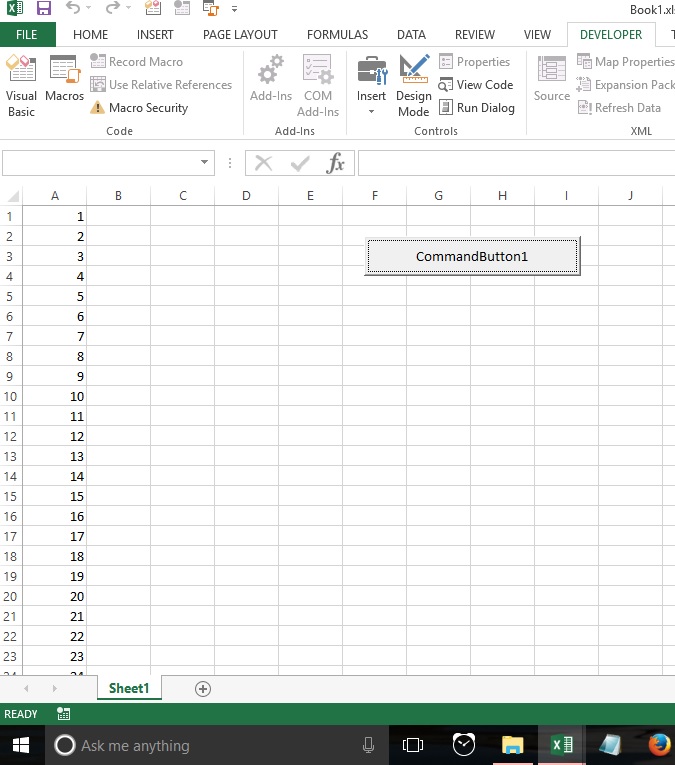
Release the left mouse button. Then command button will be created like this.  


Next I will explain you how to change the name of the command button or any other property. First you need to right click on command button. Then select properties. 


You will see the properties window like this.

Now you can change properties like name, caption, background colour and font colour etc. from this window. And when you name the controls, it is a good practice to follow the conventional naming system. For an example if you want to name this command button as “Click” then you need to add cmd before the name. So the name will be “cmdClick”.

Next I will explain you how to add VBA code to ActiveX control command button. As an example let's write a code to type from 1 to 100,000 in column A of the Excel sheet. First click on the developer tab and select the Design mode.


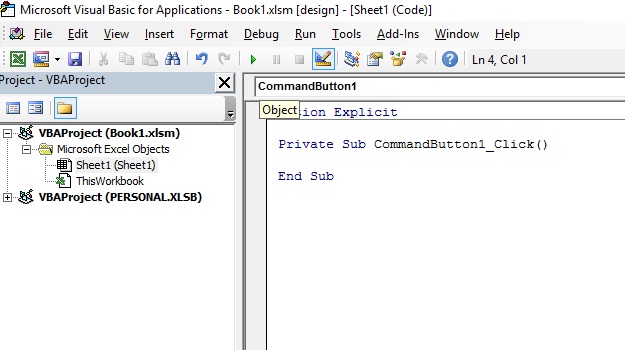
Now double click on the command button. Then VBA editor will be opened like this.


So you can add the below code to the command button.


Exit the design mode by clicking on it again. Then click the command button to run the program. You will get following result.


Use Textbox to Input Date in VBA

We often use VBA userforms to enter data. These userforms contain various types of controls such as combo boxes, textboxes, command buttons etc. Among them textboxes are a commonly used control type in userforms. So today I am going to explain you a cool trick you can use in VBA textboxes. This will be very useful when you use text boxes to input dates. we can enter dates in various formats such as dd/mm/yyyy, mm/dd/yyyy, mm/dd/yy etc. but there are situations where we need to tell our user to enter date in only particular format. So how we can give this message to our users. We can do it simply like this


When you show the form you can put date format inside the textbox. This can be done by assigning the relevant value to textbox in userform's initialise event. Below is the code you can use for that.

Private Sub UserForm_Initialize()

txtStart.Value = "DD/MM/YYYY"

End Sub

But it will be a little difficult if user need to delete this value every time he or she want to enter a date. Then your application won't be user friendly. So the best thing is to find a way to clear the textbox when user click on it. We can do this easily using textbox MouseDown event. Here below is the code you can use for that.

Private Sub txtStart_MouseDown(ByVal Button As Integer, ByVal Shift As Integer, ByVal X As Single, ByVal Y As Single)

If StrComp(txtStart.Value, "DD/MM/YYYY", vbTextCompare) = 0 Then

     txtStart.Value = ""

End If

End Sub

I will explain you why I have used if statement here. Sometimes user can unintentionally click on the textbox after entering the correct date. And sometimes user may need to correct a part of the date if he or she has entered it incorrectly. Because of that, we need to check the current value of the text box before clear it. So that's why I have used a if statement before clear the value. Then it will clear the value of the textbox only if it find DD/MM/YYYY.


Add Textbox to Excel Worksheet

In this post I will explain you how to insert Textbox to Excel worksheet. These are the steps you need to follow. First click on the developer tab. Then click on the insert menu in controls group.


When you click on the insert menu it will list types of control you can insert to the worksheet.

There are two types of controls. They are form controls and ActiveX controls. Text box is listed under activeX controls. However there's another control type call text field which is listed under form controls. But do not confused with this text field controls. Text Field controls always appear dimmed because they are unavailable in Excel workbooks.

So click on the text box control to add it to the worksheet.


Then you will notice that your mouse pointer will change to + symbol. Now left click somewhere on the worksheet And drag the mouse to create a small rectangle like this. 

Now release the left mouse button. When you release the button new Textbox will be created in the worksheet.


And when you create the Textbox you will notice that the Excel application automatically gives a name to that text box. However programmers use conventional naming method to name controls. So it is a good practice to follow that conventional naming method when you name the controls. For an example if you want to name this Textbox as username then you can name it as txtUsername.

Next I will explain you how to change name or any other property of a text box. First right click on the Textbox and click on the properties. 


Then you will see the properties window.

Now you can change name or any other property from this properties window. In a next post I will explain you how to change a value of Textbox from a command button.

Contact Form

Name

Email *

Message *